
Projects with an AI agent
See what Claude Code or another AI agent changed in your project, compare before and after, restore a file, read and edit notes, and accept the cloud agent's proposals — in X-Filer, without git.
If you run a project with an AI agent — a book, a site, research, a course — X-Filer shows what the agent did since your last visit, in plain words. Compare before and after, put a file back as it was, read and fix notes, see the agent's instructions and skills. No git commands and no IDE.
A project is a folder where an agent works: it has AGENTS.md, CLAUDE.md, GEMINI.md, .github/copilot-instructions.md, .cursor/rules/ or a .claude/ folder. When you open such a folder, a bar says An agent works here with Open project.
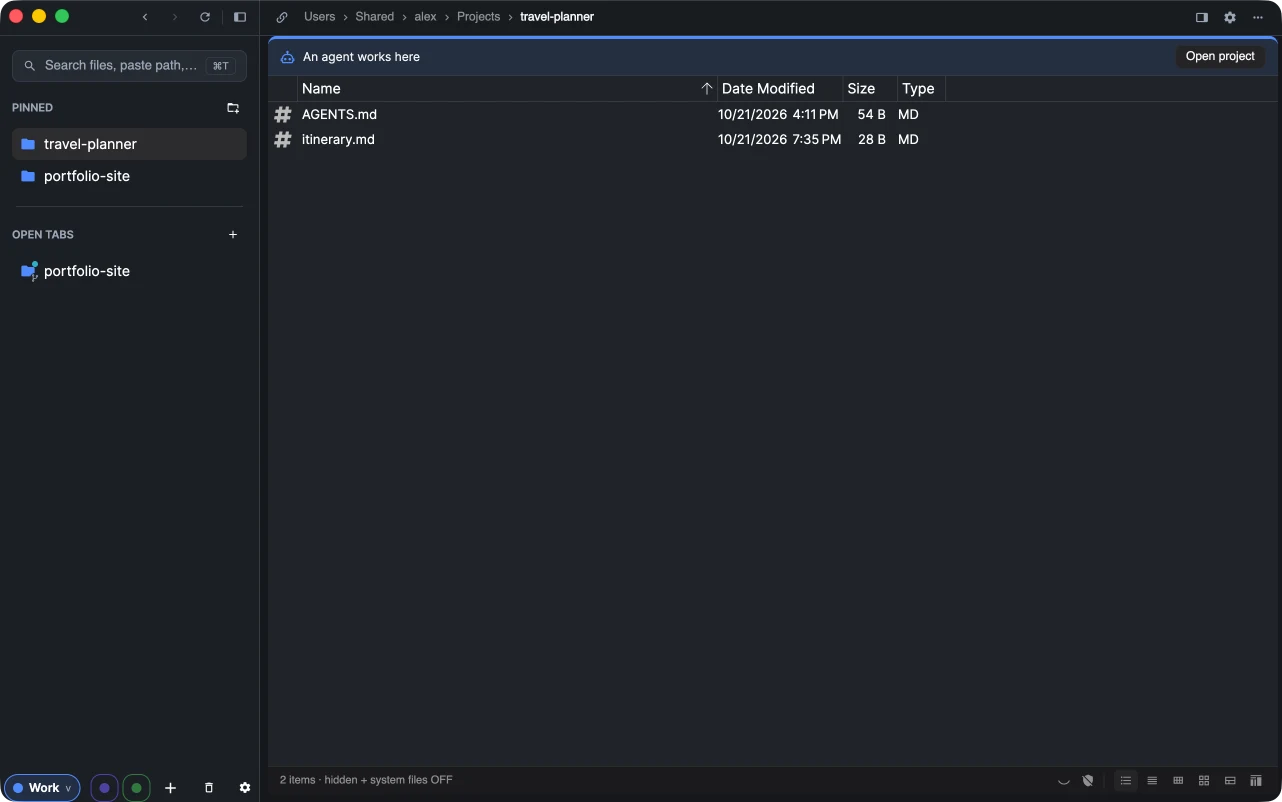
The projects page
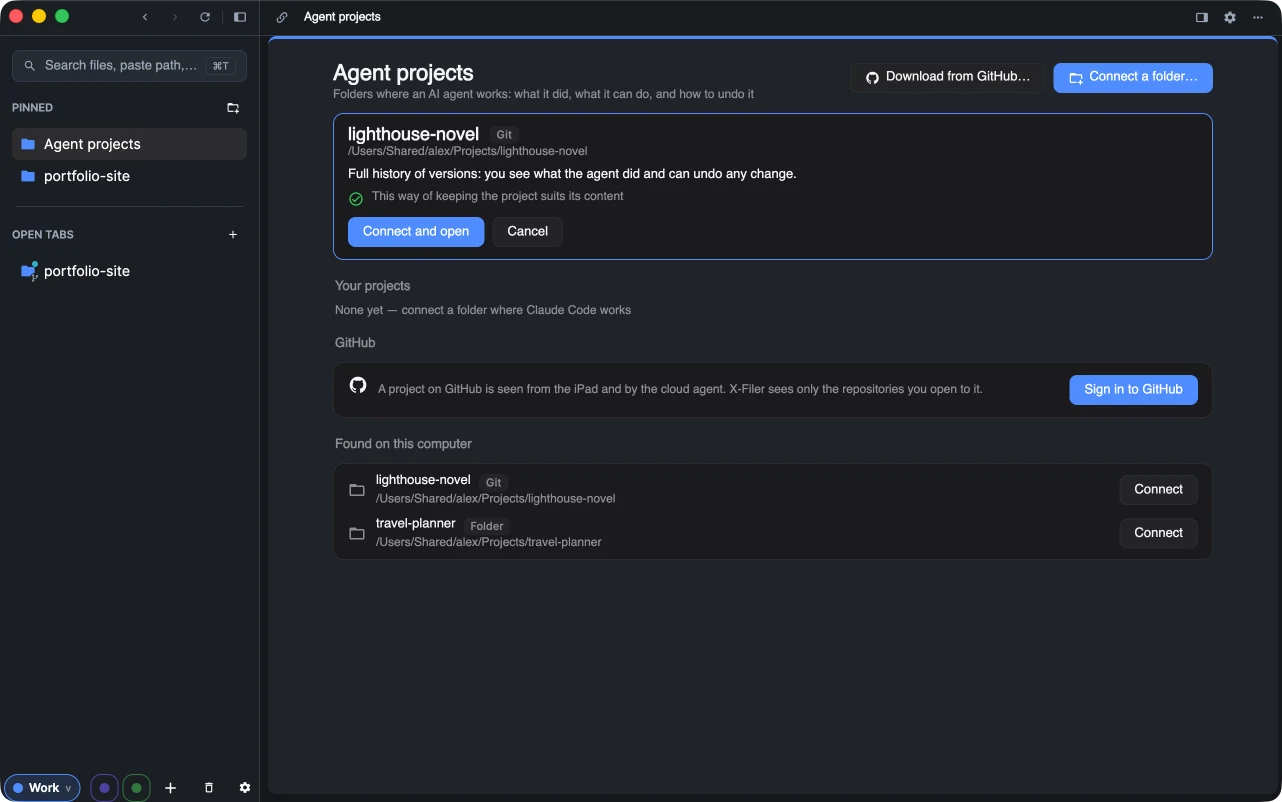
Open it with Go → Agent Projects on macOS, Open project on such a folder, or the link on a new tab's page. It has:
- Your projects — connected projects, with what is new in each since you last looked;
- GitHub — sign in to see projects kept on GitHub;
- Found on this computer — agent folders X-Filer found in your home folder, usual project folders and the sync folders of your cloud drives, each with Connect;
- Connect a folder… and Download from GitHub… at the top.
Connecting a folder shows how the project is kept and whether that suits it: git gives full history and works with the cloud agent; git with LFS keeps pictures and PDFs separately; a cloud drive folder suits large projects. If another way fits better, Copy a task for the agent gives the agent the instructions to move it.
Project overview
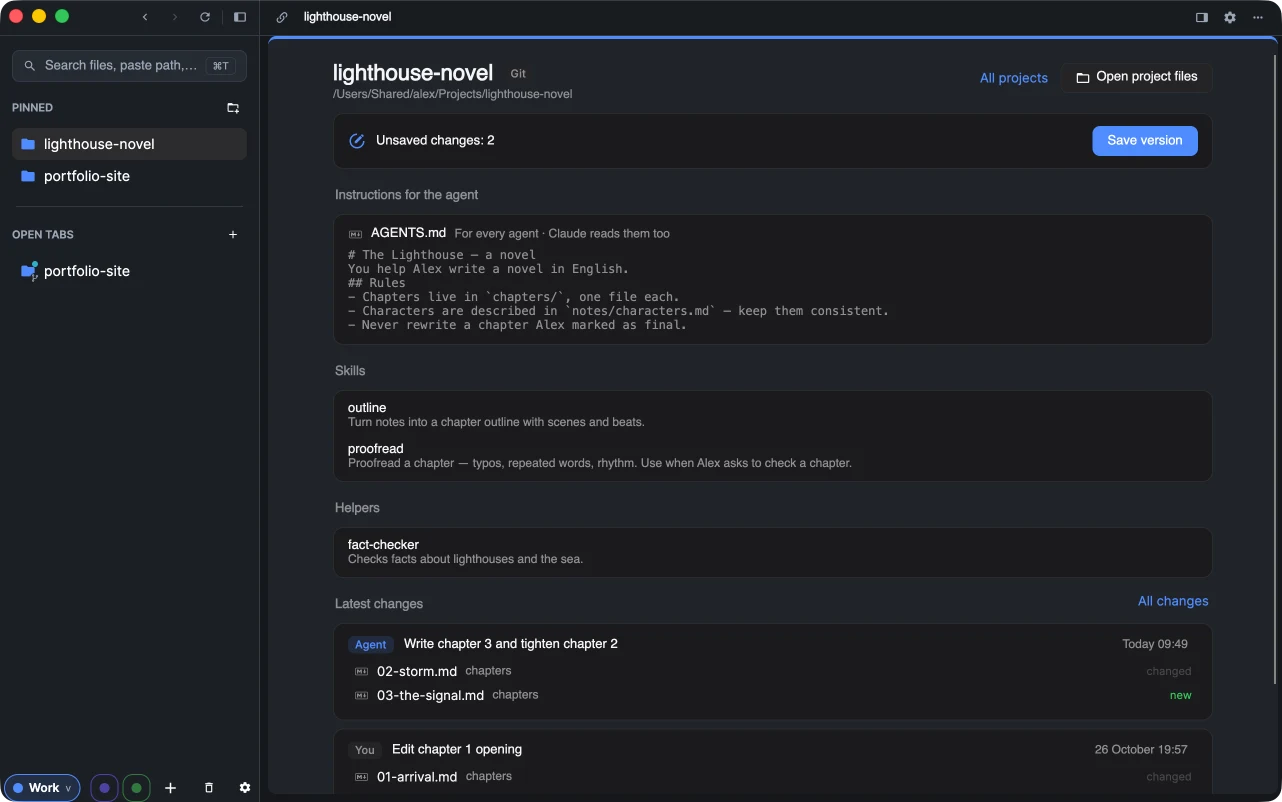
- State line — everything saved and sent, the number of unsaved changes, versions not sent or new in the cloud, with Save version, Send to the cloud or Get the latest as needed.
- Instructions for the agent —
AGENTS.md,CLAUDE.mdand the others, with who reads each ("For every agent · Claude reads them too"). - Skills, Helpers and Commands from
.claude/— click a skill to read itsSKILL.mdand files. - Latest changes — the newest versions; All changes opens the feed. Open project files opens the folder in the explorer.
The change feed
The feed lists versions by day. Each card says who made it — Agent or You — what it was called and which files it added, changed or deleted. Versions made since your last visit are marked new, and the top line counts them: "Since your last visit: 5 new versions, 4 by the agent". A visit begins when you open a project after 30 minutes away.
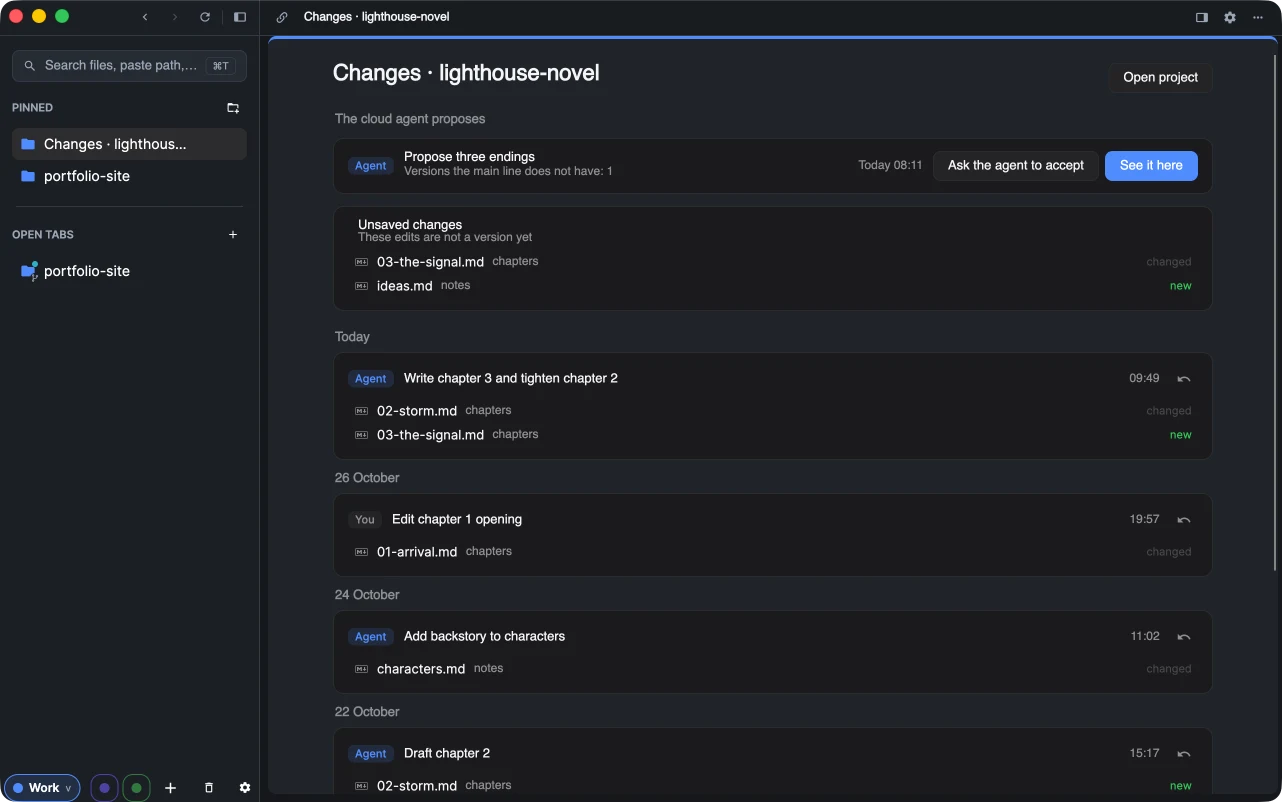
At the top:
- The cloud agent proposes — versions a cloud agent made on its own branch. See it here switches the folder to the proposal; Ask the agent to accept gives your agent the task of merging it.
- Unsaved changes — edits that are not a version yet.
What changed, and putting it back
Click a file in a card to see What changed: lines removed in red, added in green, the unchanged ones folded.
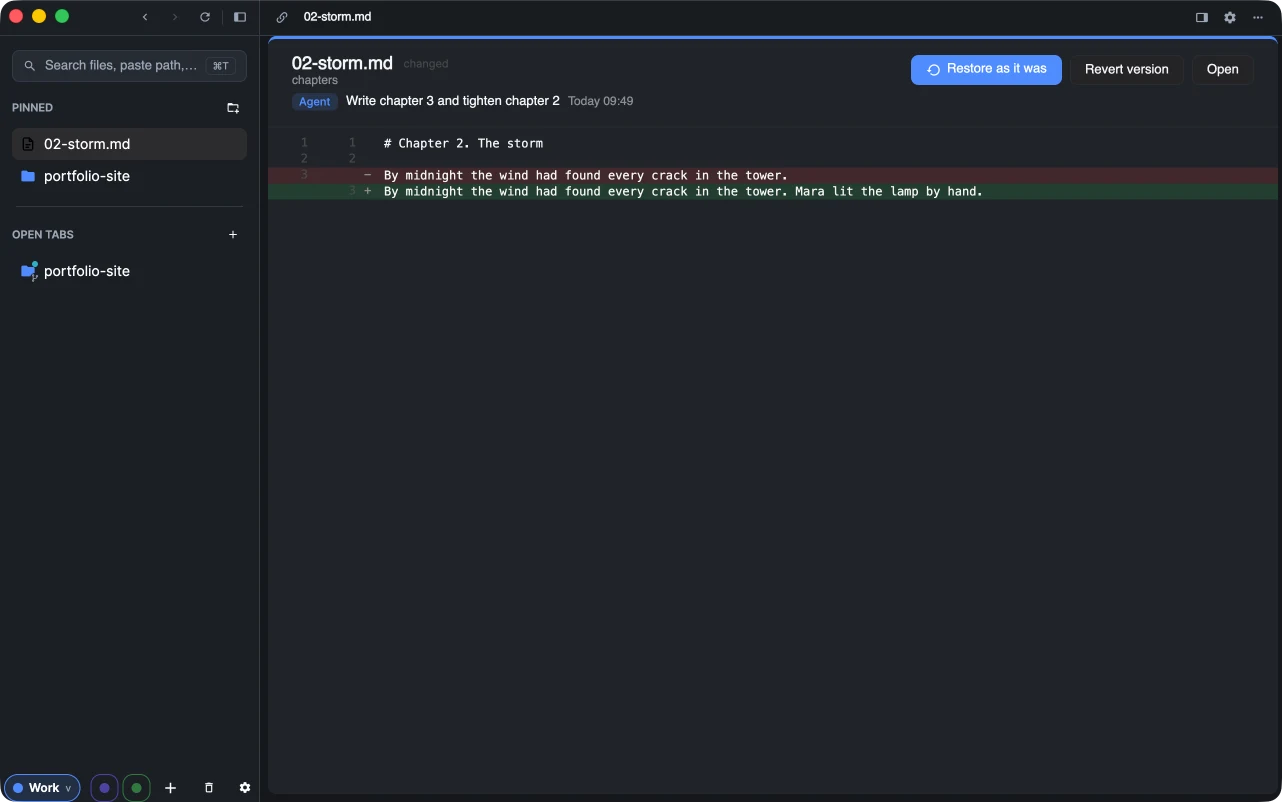
- Restore as it was brings back the file as it was before that version. The restore is a new version in the feed, so it can be undone too.
- Revert version undoes every change of a version, again as a new version.
- Open opens the file.
Nothing rewrites the history: every step back is a step forward that you can see.
Read and edit files
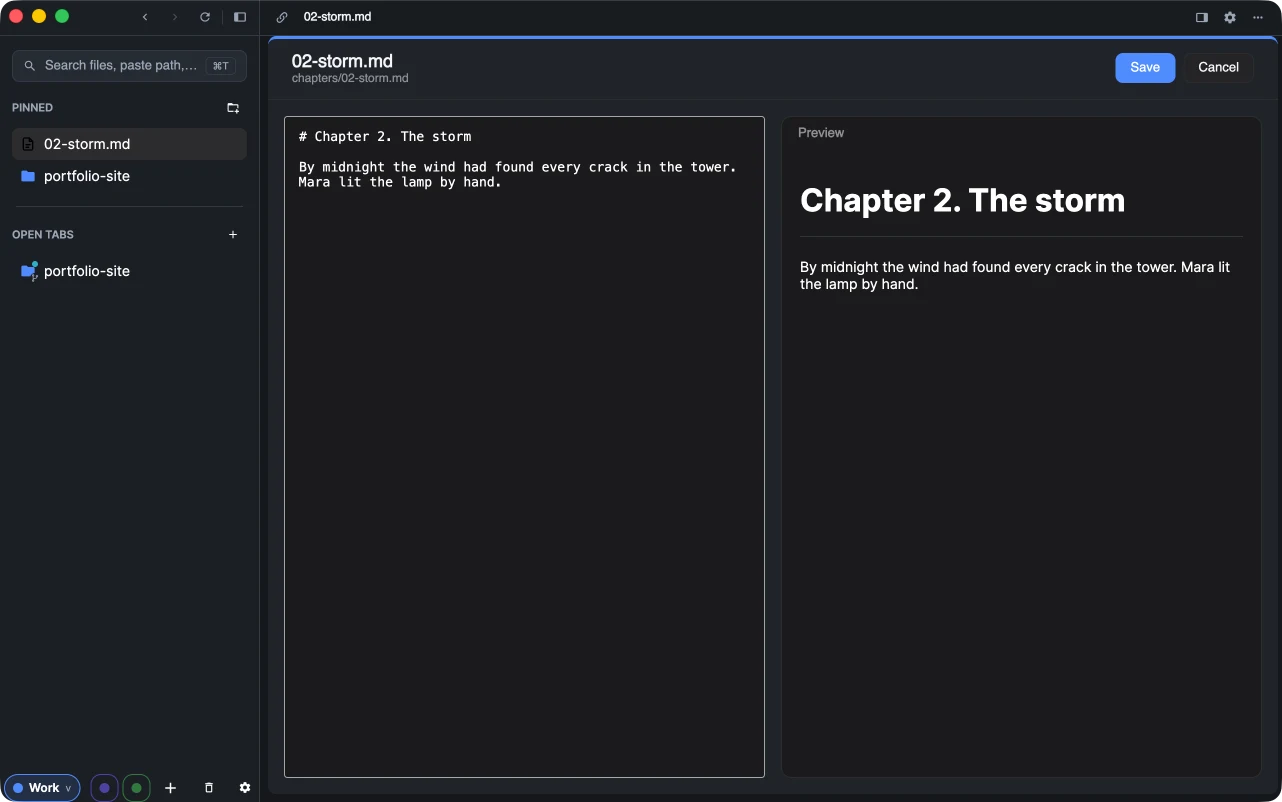
Markdown opens rendered, CSV as a table, pictures as pictures, other text as text. Edit splits the page into the text and a live preview; Save writes the file. If the file changed on disk while you were editing — say the agent wrote to it — X-Filer does not overwrite it: it shows the fresh version and puts your text on the clipboard.
Projects on GitHub
Sign in on the projects page (Sign in to GitHub: a code is copied, GitHub's page opens, paste the code there) and choose which repositories X-Filer may see. A repository connects with one click, and the same overview, feed, restore and editing work on it directly on GitHub — each save is a new version there. Proposals of the cloud agent appear in the feed. This is the way to follow a project from another device.
Projects in a cloud drive folder (macOS)
A project in the sync folder of Google Drive or Yandex Disk is shown by the dates of its files: changes made close together form one card. On Google Drive X-Filer compares with the drive's own revisions and can restore an earlier one; Yandex Disk does not give other apps past versions, so files are shown as they are.