
Settings
What you can set in X-Filer — language, theme, tabs on launch, hidden files, default view, Spaces, drives, GitHub, privacy and updates.
Open Settings with the gear at the bottom of the sidebar, the gear at the top right of the window, or X-Filer → Settings… (⌘,) on macOS. Changes apply at once; there is no Save button.
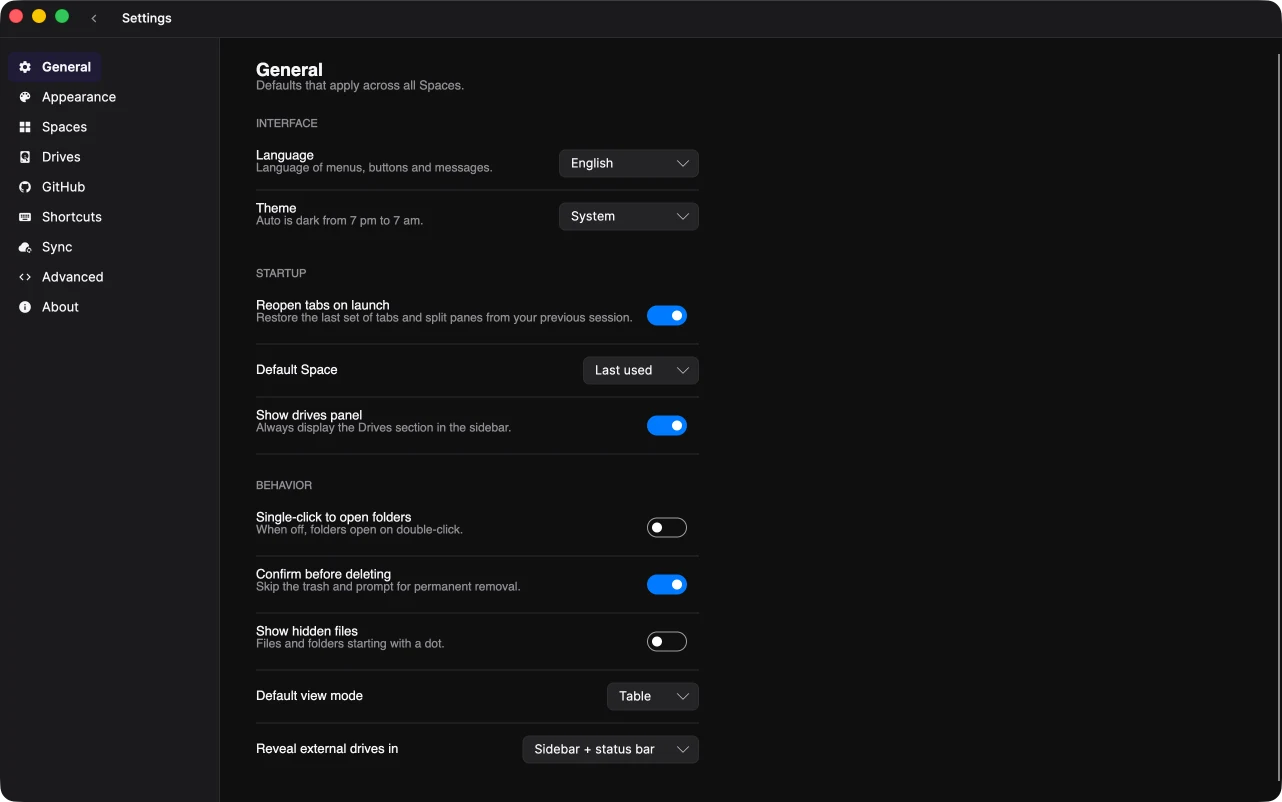
General
- Language — System, English or Русский. Menus and dialogs switch immediately.
- Theme — System, Light, Dark or Auto (dark from 7 pm to 7 am). The same choice is on the Appearance page as previews.
- Reopen tabs on launch — restore the last session's tabs and split panes; tabs unused for 24 hours are closed. Off: open tabs are closed when you quit. See Sidebar, pins and tabs.
- Show hidden files — files and folders whose names start with a dot. The shield in the status bar switches this too.
- Default view mode — table or tiles for new tabs.
- Privacy → Send anonymous usage statistics and crash reports — off until you allow it. Which features are used and why the app crashed, with a random install id; never file names, paths, drive names or accounts. In installed versions only.
Spaces
Every Space with its pins and open tabs: Manage to rename it or change its colour, Delete, and New Space. See Spaces.
Drives
Every connected drive with its status and, for clouds that report it, used and total space. Connect drive adds one; the ⋯ menu has Refresh status, Properties and Disconnect. See Cloud drives and Servers and network folders.
GitHub
Sign in to GitHub, the folder for downloaded projects, whether saved versions are sent to the cloud right away, and which agent gets tasks — Claude Code or Codex. See Version history with git.
Shortcuts
The main keyboard shortcuts for reference. The full list is in Keyboard shortcuts.
About
The version of X-Filer, links to the website, GitHub and issue reports, and updates: Check for updates, and Restart to update once a new version is downloaded. Updates work in an installed X-Filer.
Where X-Filer keeps its settings
Settings, Spaces and pins live in config.json in X-Filer's folder: ~/Library/Application Support/XFiler on macOS, %APPDATA%\XFiler on Windows. Sign-ins to drives and GitHub are not in that file — they are kept in the macOS Keychain or, on Windows, encrypted for your user account.