
Copy, move, rename, delete
File operations in X-Filer — create, copy and paste, drag and drop, conflicts, undo, Open With, Open in Editor, Get Info and Finder tags.
Right-click a file or folder for everything you can do with it. Right-click empty space in a folder for the folder's own menu: Create (folder, text document), Paste, View, Sorting, Find, Select All, Show in Finder, Open in Terminal, Open in Editor and Copy Path.
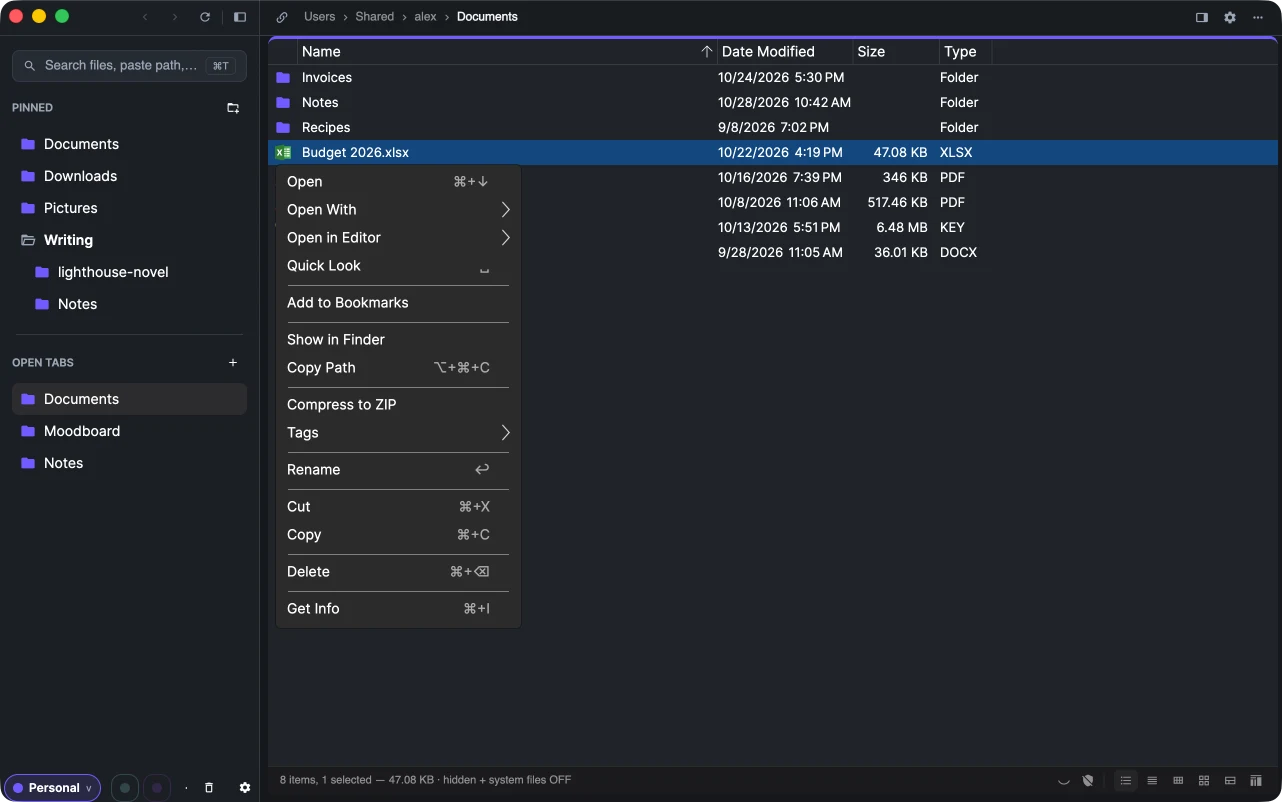
Create
- New folder: ⇧⌘N / Ctrl+Shift+N, File → New Folder on macOS, or Create → Folder in the folder's menu. Type the name and press Enter.
- New text document: Create → Text Document in the folder's menu.
Copy and move
- Copy ⌘C, Cut ⌘X, Paste ⌘V (Ctrl on Windows). On macOS ⌥⌘V — Move Item Here — moves what you copied, as in Finder.
- X-Filer uses the system clipboard: copy in X-Filer and paste in Finder or Explorer, or the other way round.
- Drag and drop works between panes, onto folders and to and from Finder, Explorer and other apps. Within one disk a drag moves; between disks, drives and servers it copies. Hold ⌥ / Ctrl while dropping to copy.
Long operations show in a bar at the bottom of the window with their progress and a Cancel button.
When a file with the same name is already there, X-Filer asks: Replace, Save Both (the copy gets a new name), Skip or Cancel. Tick Apply to Remaining Files to answer once for the whole batch.
Rename
Select an item and press ↩ on macOS or F2 (on Windows and Mac), or choose Rename. Select several items and Rename… opens batch rename.
Delete
⌘⌫ on macOS, Delete on Windows, or Delete in the menu moves the items to the Trash / Recycle Bin. Restore them from the Trash page or right away with Undo.
A cloud drive or server has no trash of its own: X-Filer asks before deleting there, because the files cannot be restored.
Undo
⌘Z / Ctrl+Z takes back the last operation on this computer's files: a move, copy, rename, new folder or file, a ZIP archive, a batch rename (as one step) or a move to the Trash. It never overwrites anything. Operations on cloud drives and servers are not undone.
Open with an app or an editor
- Open opens a file in its default app. Open With lists the apps that can open it (on macOS with their icons) plus Other…; on Windows it shows the system's Open with dialog.
- Open in Editor opens the file or the current folder in a code editor installed on the computer: VS Code, Cursor, Windsurf, Zed, Sublime Text, Rider, IntelliJ IDEA, WebStorm, PyCharm, Android Studio or Xcode.
- Open in Terminal opens Terminal (or a console on Windows) in the folder. Show in Finder / Show in Explorer reveals the item in the system file manager.
- Copy Path (⌥⌘C / Ctrl+Shift+C) copies the full path.
Get Info
Get Info (⌘I on macOS) or Properties (Alt+Enter on Windows) shows the kind, location, dates, attributes and size. For a folder or several items the size and the number of files and folders are added up in the background.
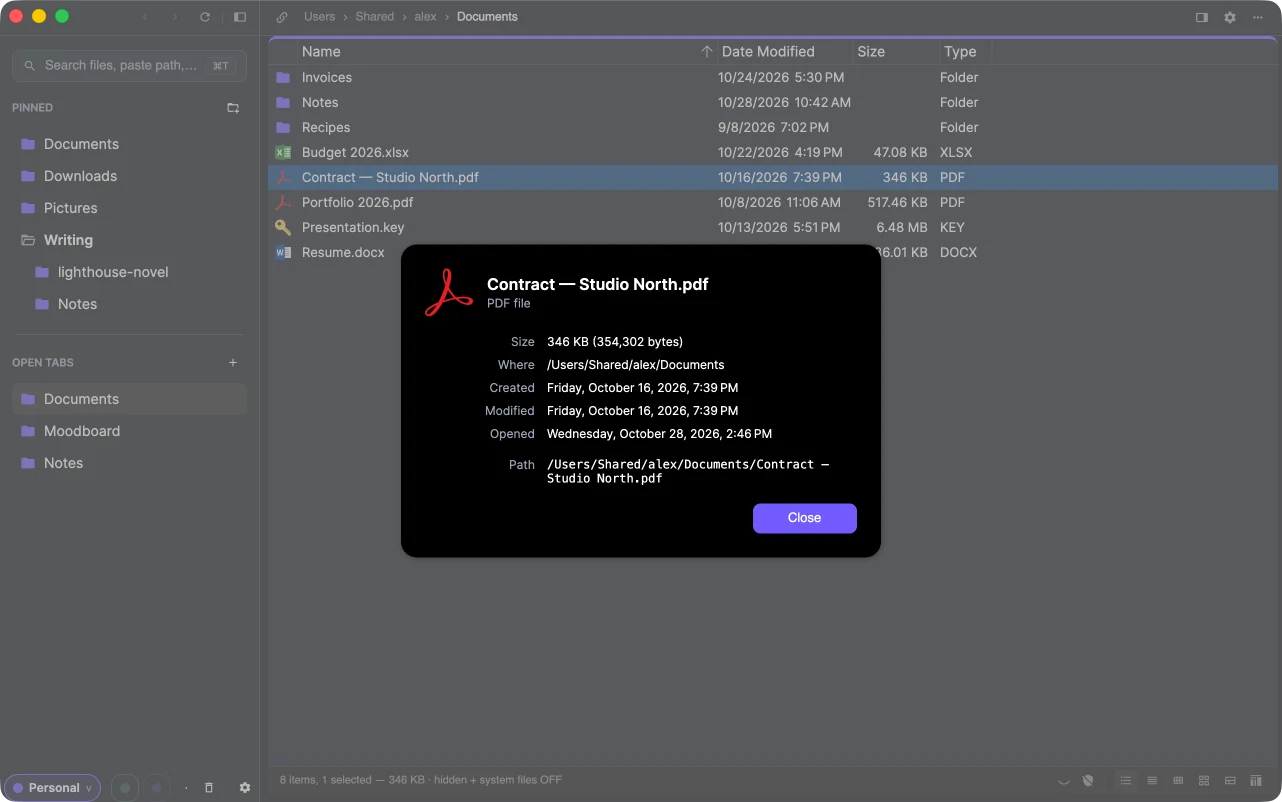
Finder tags on macOS
Tags in the context menu toggles Finder's colour tags — red, orange, yellow, green, blue, purple, grey — for the selected items. Tags show as dots after the name in the table and on the icon in tiles, and they are the same tags Finder shows.
ZIP and archives
Compress to ZIP packs the selected items into a ZIP next to them. Opening and extracting archives is covered in Archives.