
Split view
Show two folders side by side in X-Filer, copy and move files between them, and close the second pane.
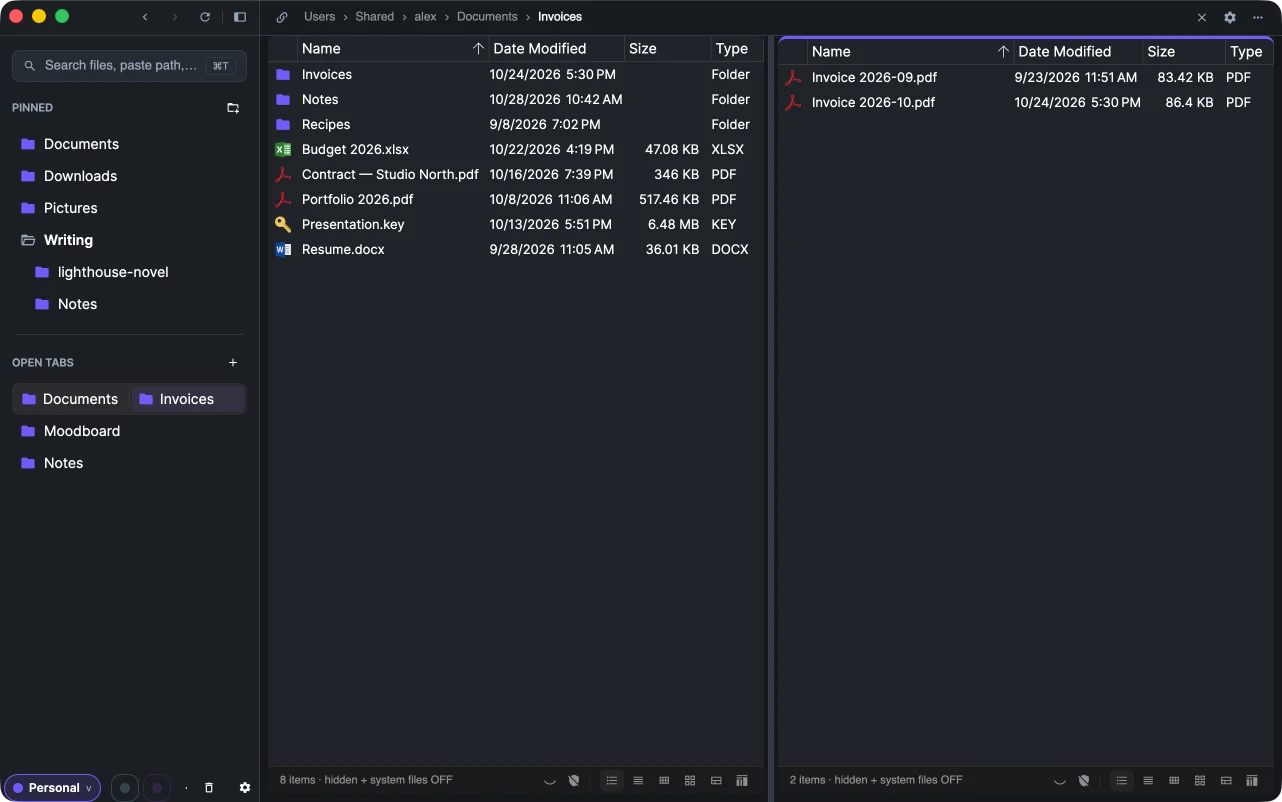
Split view shows two tabs side by side in one window — the classic two-pane file manager, when you need it and only then.
Open a second pane
- the split button at the top right of the window (Open split view);
- View → Split View on macOS, or ⌘</kbd>;
- Open beside in the context menu of a pinned item or an open tab;
- in the launcher, pick a result with ⌥↵ / Alt+Enter to open it in the other pane.
Work with two panes
Click inside a pane to make it active: the accent line at its top shows which one it is, and the path bar, keyboard shortcuts and menu commands act on it. Drag the divider between the panes to change their widths.
Drag files from one pane to the other to move them (or copy them, between different disks and drives). Hold ⌥ / Ctrl to copy instead. Copy and paste works between panes too. Details are in Copy, move, rename, delete.
In the sidebar the two tabs show as one row. Right-click it and choose Separate split view to turn them back into two tabs, or Close both tabs.
Close the second pane
Click the split button again, choose View → Split View, or press ⌘</kbd>. The other tab stays among the open tabs.