
Trash
See what was deleted and from where, restore files and empty the Trash or Recycle Bin in X-Filer.
Items you delete in X-Filer go to the system Trash on macOS or the Recycle Bin on Windows, just as in Finder and Explorer. The Trash page shows them with more detail than the system does.
Open it with the trash button at the bottom of the sidebar or Go → Trash on macOS.
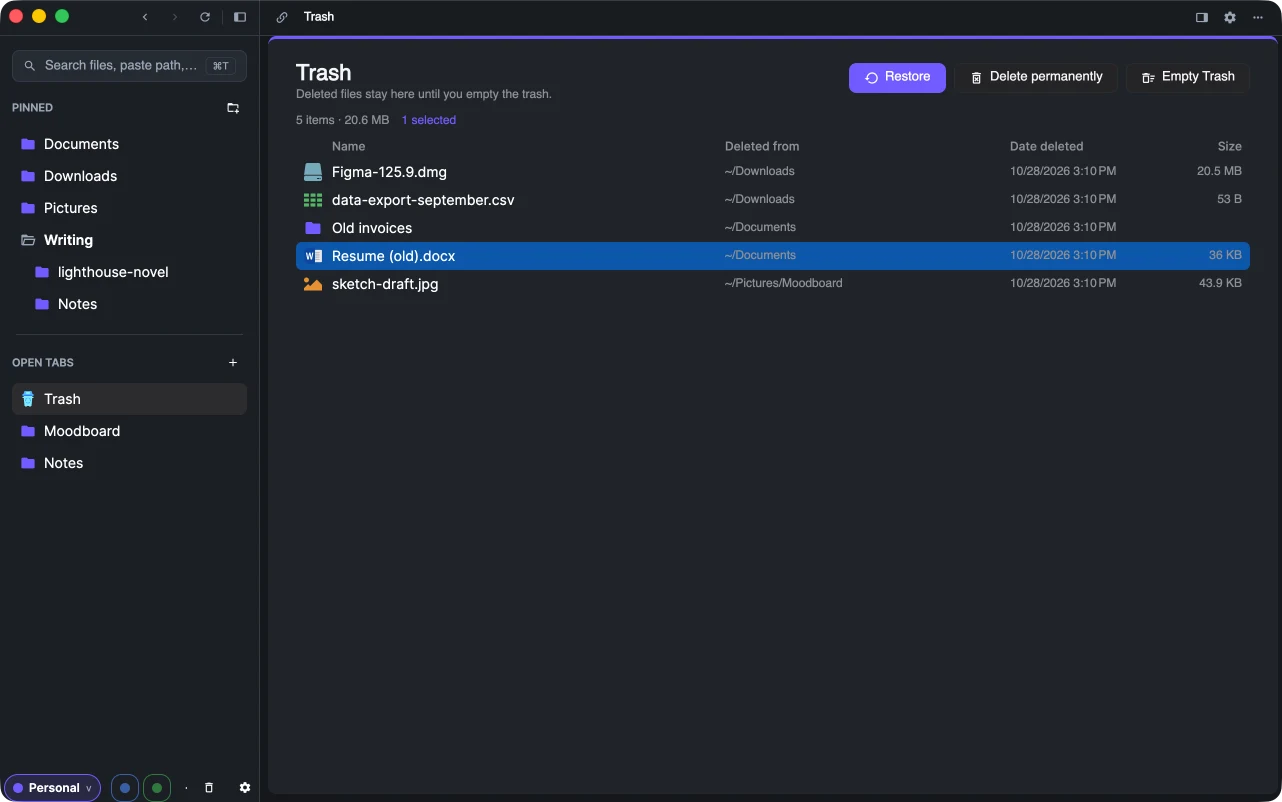
What you see
Every item in the trash of every disk: its name, Deleted from — the folder it was in — the date it was deleted and its size. The summary above the list counts the items and their total size.
Restore
Select items and press Restore. They go back to the folder they came from. Restoring never overwrites anything: if a file with that name has appeared in the meantime, the restored one gets " (2)" added; if the folder itself is gone, it is created again. An item whose origin the trash does not know cannot be restored.
Right after deleting, ⌘Z / Ctrl+Z is faster — it puts the last deletion back.
Delete for good
- Delete permanently removes the selected items.
- Empty Trash removes everything.
Both ask first: the files cannot be brought back afterwards.
macOS: Full Disk Access
macOS shows the Trash only to apps with Full Disk Access. Without it the page says so and has a button that opens System Settings → Privacy & Security → Full Disk Access; switch X-Filer on there and come back.