Size map
See what takes the space in a folder — the X-Filer size map draws folders and files as rectangles sized by what they hold.
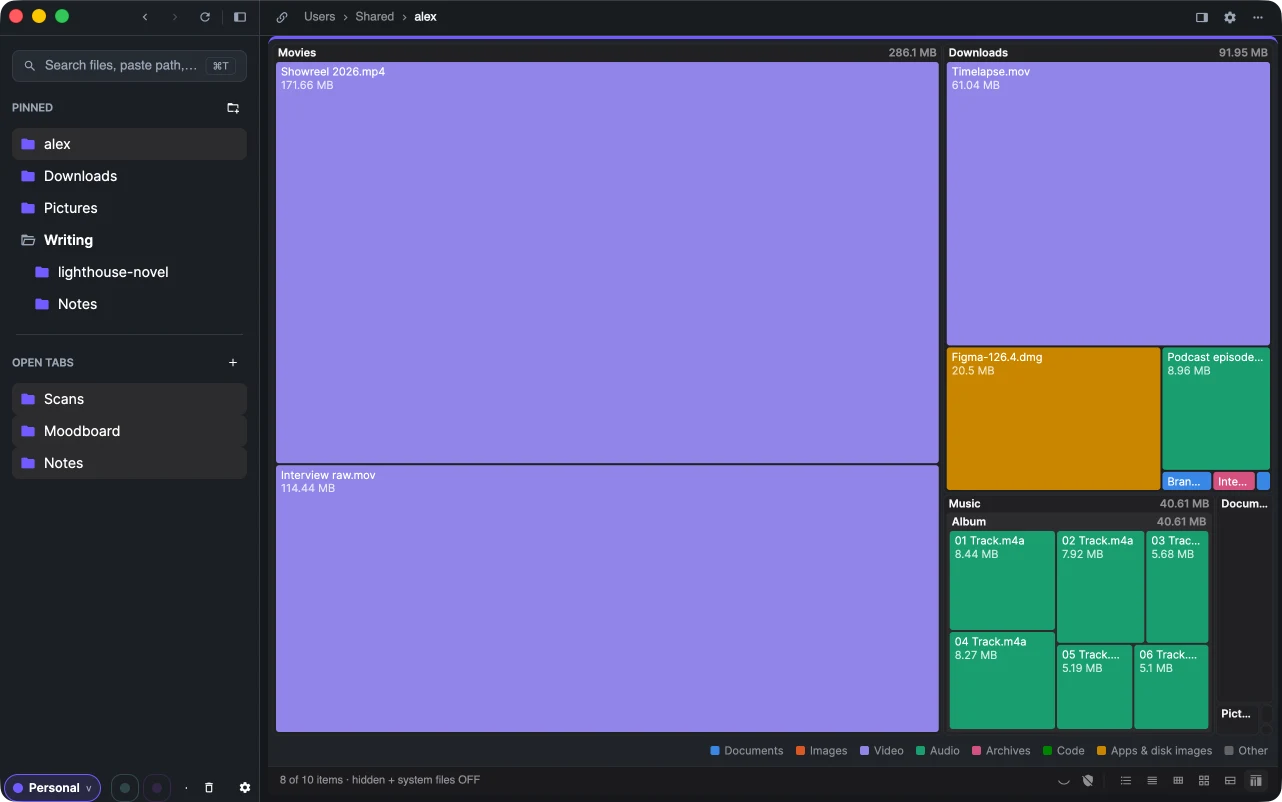
The size map shows a folder as rectangles: each folder and file in it is one rectangle, and the bigger the rectangle, the more space it takes. The folders and files that eat the disk stand out at once; double-click a big folder to see its own map.
Open it
- the size map button at the right end of the status bar;
- View → as Size Map or ⌘3 on macOS.
Switch back to the table or icons the same way. The map fills in while the folder is measured; the footer shows the progress.
Read the map
- Files are coloured by kind: documents, images, video, audio, archives, code, apps and disk images, and other. The legend is in the footer.
- Folders are neutral panels with their name and total size. What is inside a folder is not drawn — open it to see its own map.
- Hover a rectangle to see its name, size and share of the folder in the footer.
Act on it
- Click a rectangle to select its item. The context menu, the keyboard shortcuts and the status bar act on the selection, so you can delete or move a huge file right from the map.
- ⇧, ⌘ or Ctrl click adds to the selection.
- Double-click opens the item: a folder opens in the tab with its own map, a file in its app.
- Drag a rectangle to drag its item — to the Trash, another folder or the other pane.
Fast after the first time
One walk of a folder serves both the map and the folder sizes of the table, and its results are remembered for a few minutes — open a subfolder and it is measured already. Folder sizes are counted on this computer; on a cloud drive or server the map shows the files of the current folder only.