
Quick preview
Look inside pictures, PDFs, Markdown, code and text files in X-Filer with the Space bar, without opening another app.
Updated Читать по-русски
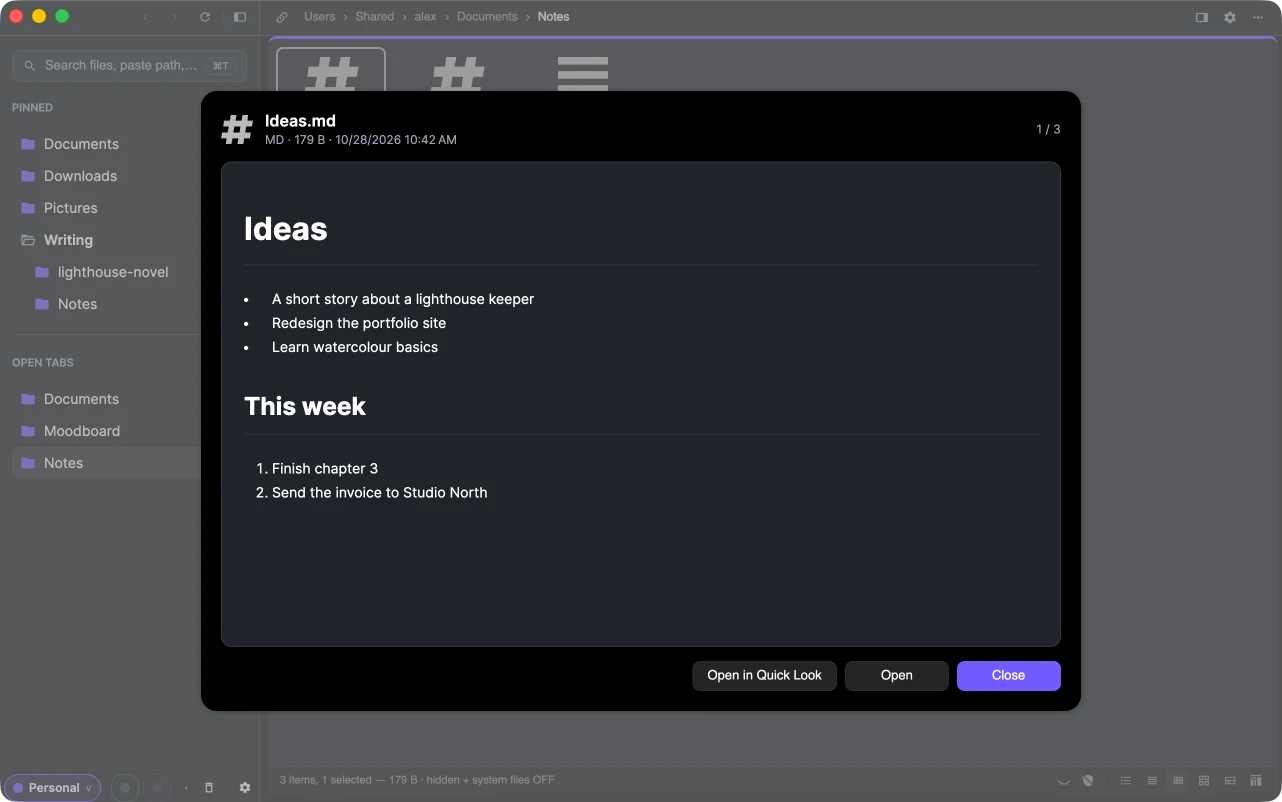
Select a file and press Space — or choose Quick Look in its context menu — to see what is inside without opening another app. Press esc or Close to close it.
What it shows
| Kind | In the preview |
|---|---|
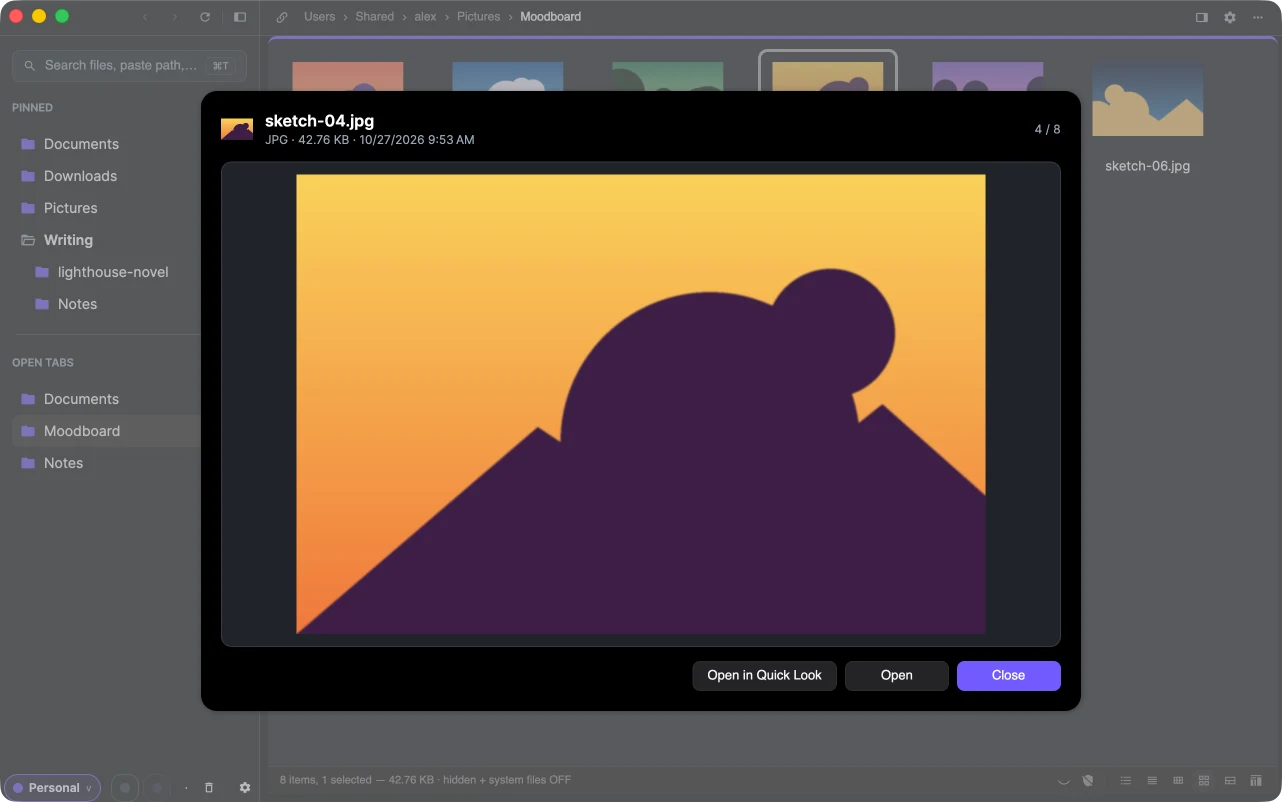
| Pictures | PNG, JPEG, GIF, BMP, WebP, ICO, SVG, turned upright as the camera recorded them |
| the first pages and the page count | |
| Markdown | rendered: headings, lists, tables, links |
| Code | colour-highlighted by language |
| Text | logs, CSV, configs and other plain text; very long files show their beginning |
On Windows, Explorer's own preview handlers draw other files too — a frame of a video, the first page of a document. Audio and video do not play in the preview.
Walk through a folder
While the preview is open, the arrow keys move to the previous and next file, so you can flip through a folder of photos or notes. The counter at the top right shows where you are.
Buttons
- Open — open the file in its default app.
- Open in Quick Look (macOS) — hand the file to the system's Quick Look, for formats X-Filer does not draw itself.
- Close.